

Sharing your awesome blog content to Pinterest is key because it brings in so much traffic. Here I will teach you two ways to add a Pinterest Pin It button to your WordPress site for free.
When you first start a blog, cutting costs where you need to is ideal until you are actually able to monetize your site. That is why I’m sharing how to add a Pinterest Pin It button to your website for free.

This post may contain affiliate links. I may earn a small commission from purchases made through them, at no additional cost to you. Please see my Disclosure Policy for more details.
Add the Pinterest Pin It Button Directly to Your Images
These instructions will illustrate how to add the Pin It button directly to the images within your blog post. Like this:

Having the Pinterest Pin It button directly on your images makes it so easy for your readers to pin a certain image later so they can reference your blog post another time.
1. From your WordPress dashboard, head to Plugins > Add New. Search for jQuery Pin It Button For Images. Install Now and Activate the plugin.
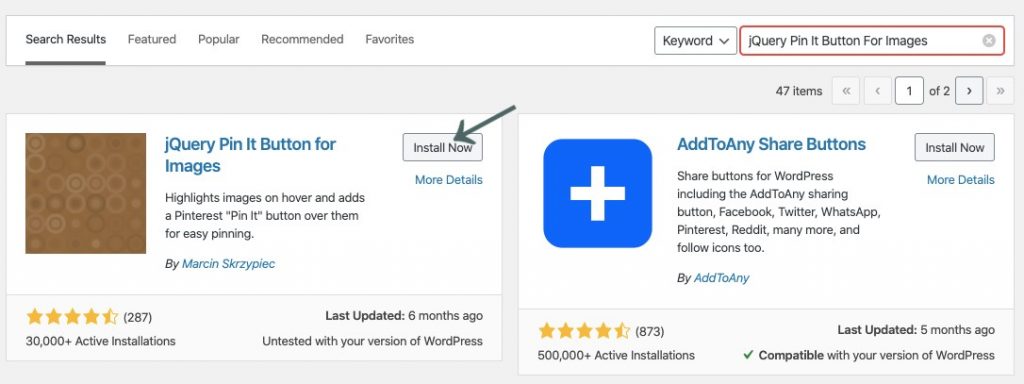
2. To find the settings for this plugin, from your WordPress dashboard go to Settings > jQuery Pin It Button Images Lite.

Here you can set what pages you do or do not want this plugin to be used on. Additionally, you can customize what you want the Pin It button to look like under the Visual tab.
This plugin also has the ability to upgrade to the Pro version to get a few more features, but I’ve always just used the free version.
RELATED: How to Create a Pinterest Business Account
Add the Pinterest Pin It Button to Your Post
I currently use the Social Warfare plugin for my social share buttons on my WordPress site. It’s so helpful because the social share buttons float at the bottom of the post encouraging your readers to share with the platform of their choice.
1. From your WordPress dashboard, head to Plugins > Add New. Search for Social Warefare. Install Now and Activate the plugin.
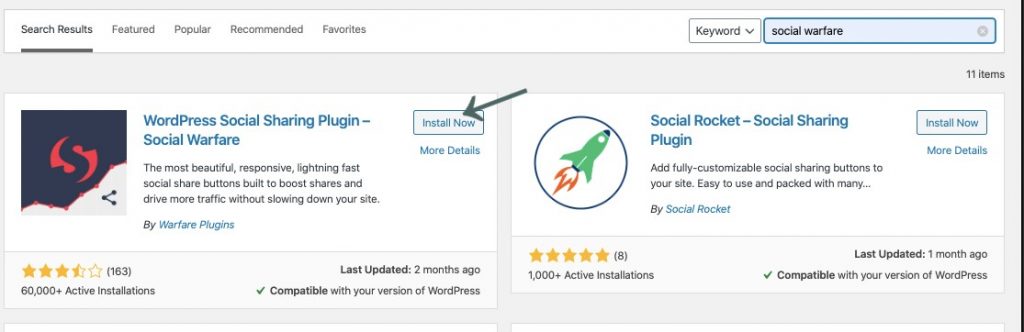
2. Click on Social Warfare in your WordPress Admin sidebar. Here you can choose which social networks you wish to have shown on each post or page for sharing. Choose the Pinterest one, and any of the other ones you wish to have and Save Changes.

Additionally, with the free version of Social Warfare you can choose to display share counts for each social network, where your share buttons will be displayed, and enable floating share buttons.
With the Pinterest Pin It buttons on your WordPress blog, you are now actively encouraging your readers to share your content easily on Pinterest.
RELATED: How to Claim WordPress Website on Pinterest
Social Warfare Pro
Social Warfare has a Pro version that is $29 the first year, and 30% off each subsequent year ($20.30). Plus, it includes quite a few extras that the free version doesn’t provide, like:
Extra Pinterest Features
It includes the ability to add the Pin It button to your images, just like the jQuery Pin It Button does. So if you were to ever upgrade to Social Warfare Pro, you would no longer need the JQuery Pin It button plugin.
In addition to that, you can upload a custom Pinterest image and write a custom description for every post. So, when someone clicks your Pin It button on any post, the exact image and description you wrote are what is automatically pinned to Pinterest. This feature alone is worth the upgrade because you’ve just optimized your Pinterest sharing.
More Social Share Buttons
It has more social share buttons. For example, Yummly is available in the Pro version, which is a great addon for a recipe blogger.

Twitter Extras
The Pro version provides the ability to create tweetable quotes within your post, customized tweets, and you can also activate Twitter cards so tweets from your WordPress site include rich media and are more engaging.
I just created a Pinterest account yesterday and I understand absolutely nothing haha. I’ve been postponing it because I feel like I’m already trying to juggle too many social medias at once. This post helped a lot! At least I know which plugins might be useful. I know, long way to go… Thanks! 🙂
I’ve learned it’s best to master one social media platform at a time. I am currently only focusing on Pinterest myself because I know it is good at bringing consistent traffic. Good luck!
Thank you for the information. This is definitely something worth looking into.
Thanks for reading!
This is very educational, especially to new bloggers. Thank you for this article.
Glad I could help.
Thank you for sharing. Very useful
No problem. I hope it was helpful.